The 8 Best AI Writing Tools for Outlook (2026)
- Harmony
- AI Email Writers
- Outlook
By Dorian Detragiache (LinkedIn, opens in a new tab)15 min read
AI tools inside Outlook mostly compete on speed: drafting faster, summarising longer threads, clearing more of the inbox before lunch. Speed solves a real problem, but it isn't the same problem as being understood.
An email can be well structured, on brand and grammatically correct, and still land badly with the person reading it.
This guide compares AI writing tools built for Outlook, based on:
- How well each tool preserves the sender's own voice and intent
- Whether it accounts for the recipient, or only for the words on the screen
- How it actually sits inside Outlook (add-in, desktop, web, mobile) and what that means for IT approval
- How much control the sender keeps over the final message
- Suitability for teams working inside a managed Microsoft 365 tenant
- What each vendor publishes about privacy and data handling
One disclosure up front: Harmony by Unanimas is our product, and Unanimas publishes this guide. It's assessed against the same criteria as every other tool here, limitations included. Assessed from each vendor's own documentation as of September 2026, plus hands-on use of Harmony.
Quick answer
If your email is mostly written and your question is how a specific person will read it, Harmony is built for that job inside Outlook, adjusting how the message lands rather than drafting a new one. If you want AI built into Outlook itself with no separate sign-up, Microsoft Copilot is the native option for eligible Microsoft 365 accounts. If your main need is catching errors and awkward phrasing as you type, Grammarly remains the safest general-purpose pick.
What to Look For in an Outlook AI Writing Tool
Most tools in this space fall into a few different jobs, and it's worth knowing which one you actually have:
|
Tool type |
What it improves |
Main limitation |
|
Native compose assistants (built into Outlook) |
Speed from a blank page, thread summaries |
Tenant policy and licence-dependent; output can read as generic |
|
Writing editors |
Grammar, tone and clarity of the text itself |
Usually judges the words, not the person receiving them |
|
Inbox and workflow tools |
Triage, organisation, drafting at volume |
Can flatten your voice the more they write for you |
|
Communication intelligence tools |
How a message is likely to land with a specific person |
May not generate a complete email from nothing |
None of these is a strictly better category than another. The right tool depends on whether your problem is a blank page, a messy inbox, rough phrasing, or a message you've already written that you're not sure will land the way you mean it. That last problem is what the tools in the bottom row of the table above are built for: something that sits between your draft and your reader, rather than another way to generate the draft itself.
1. Harmony by Unanimas
Best for customising an Outlook draft to a specific recipient
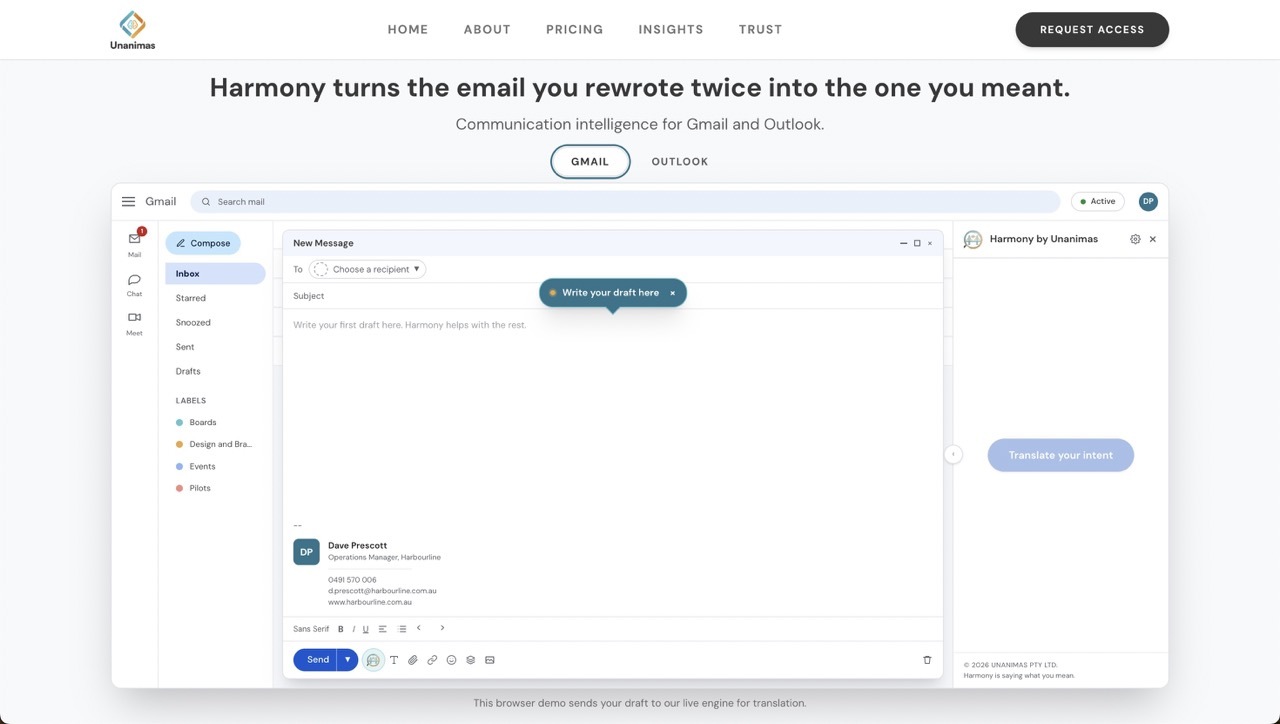 Harmony sits inside Outlook as a sidebar, working alongside the compose window rather than replacing it. You bring it a message you've already drafted, and it reads the sender's underlying intent, weighs how the current voice is likely to land for the specific person on the other end, and rewrites the delivery accordingly, while keeping your meaning and your own voice. It's the clearest example in this list of communication intelligence: an intent layer that customises delivery without touching what you actually meant.
Its standout strength is holding onto your own voice while changing how the message lands. A quick update to a direct report might need to be blunt and short; the same point to a senior stakeholder might need more context up front so it doesn't read as curt. Because Harmony starts from something you've already drafted rather than generating from a prompt, it has less reason to flatten your writing into a generic register the way full generators tend to.
Two things worth knowing before you try it. First, Harmony rewrites a message you've already written; it isn't built to generate a complete email from a short prompt, so if your problem is a blank page rather than a risky draft, it isn't solving that job. Second, Harmony is currently in paid pilots with a small number of organisations rather than broadly available, so availability and feature depth may still be moving as it comes out of that stage.
|
Best for |
Standout strength |
Main limitation |
|
Customising an existing Outlook draft to a specific recipient |
Keeps the sender's own voice while changing how the message lands |
Doesn't generate full emails from a prompt; still in early paid pilots |
Learn more about Harmony for Outlook
2. Microsoft Copilot in Outlook
Best for AI built directly into the compose window
 Copilot is Microsoft's own AI layer inside Outlook, available to eligible Microsoft 365 Copilot licence holders across New Outlook, Outlook on the web, Outlook Classic and the mobile apps. It can draft a new email from a prompt, coach and rewrite an existing draft, summarise long threads, and help triage or reschedule what's sitting in the inbox.
Its real advantage is where it lives. There's no separate account, no extension to install and no context switch: Copilot appears directly in the compose window, and Microsoft has been extending it from a drafting assistant into something closer to an agent that triages mail and calendar items on its own.
The trade-off is that Copilot's output reflects Outlook's context and your prompt, not the specific person you're writing to. It also requires a Microsoft 365 Copilot add-on licence on top of a qualifying Microsoft 365 plan. Smaller teams or individual users without that add-on won't have access at all.
|
Best for |
Standout strength |
Main limitation |
|
AI built directly into Outlook's compose window |
No separate sign-up; works across desktop, web and mobile |
Requires a Copilot licence; doesn't account for the recipient |
Learn more about Copilot in Outlook
3. Grammarly
Best for catching errors and awkward phrasing as you type
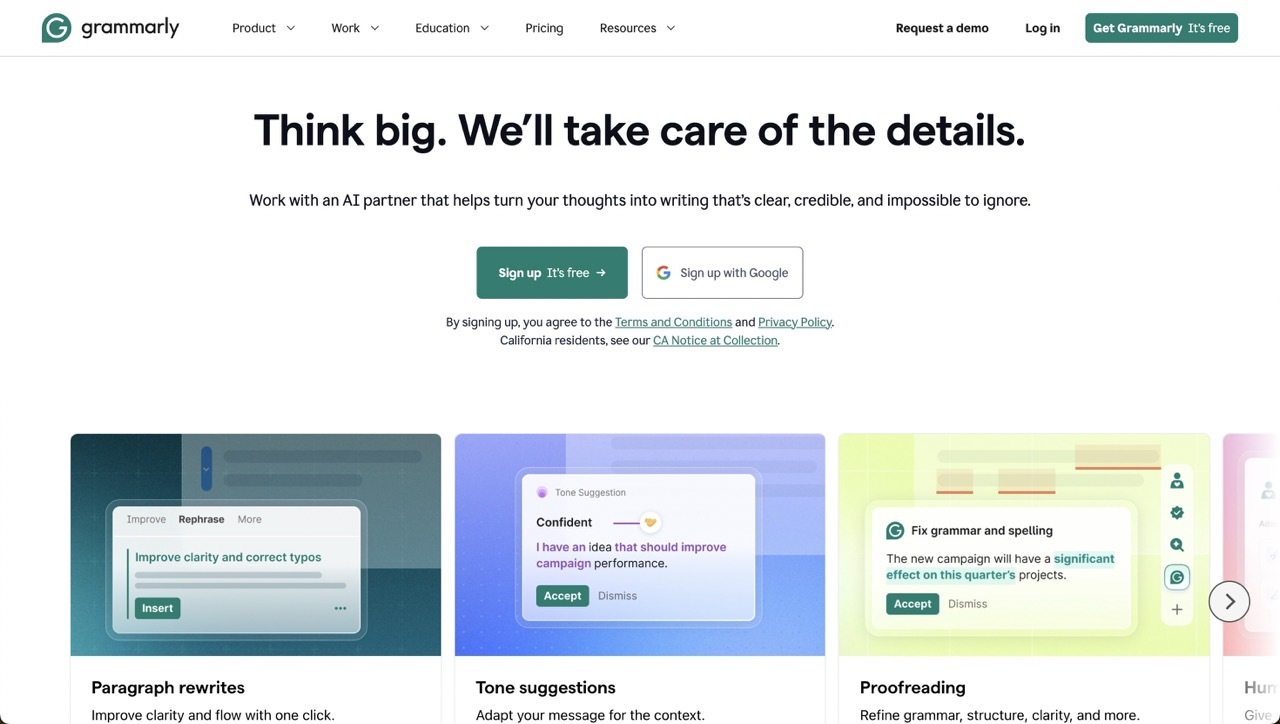 Grammarly integrates with Outlook through a desktop app and add-in on Windows and Mac, plus a browser extension for Outlook on the web, checking spelling, grammar, clarity and tone while you write. Its generative features can also draft replies or rewrite a passage on request from within the compose window.
Its tone detection is the feature most worth having open by default. It flags when a message risks reading as blunt, uncertain or overly casual, giving you a moment to reconsider the wording before it goes out, which is useful even if you ignore most of its suggestions.
Its limitation is the same one that applies to most writing editors: it evaluates the text on the page, not the person reading it. A message can pass every one of Grammarly's checks and still be the wrong register for a particular recipient, and leaning on its full rewrite option can leave writing sounding polished but generic.
|
Best for |
Standout strength |
Main limitation |
|
Grammar, clarity and tone checking |
Tone detection before you send |
Evaluates the text, not the specific reader |
Learn more about Grammarly for Outlook
4. Fyxer AI
Best for combining inbox triage with drafting in your own voice
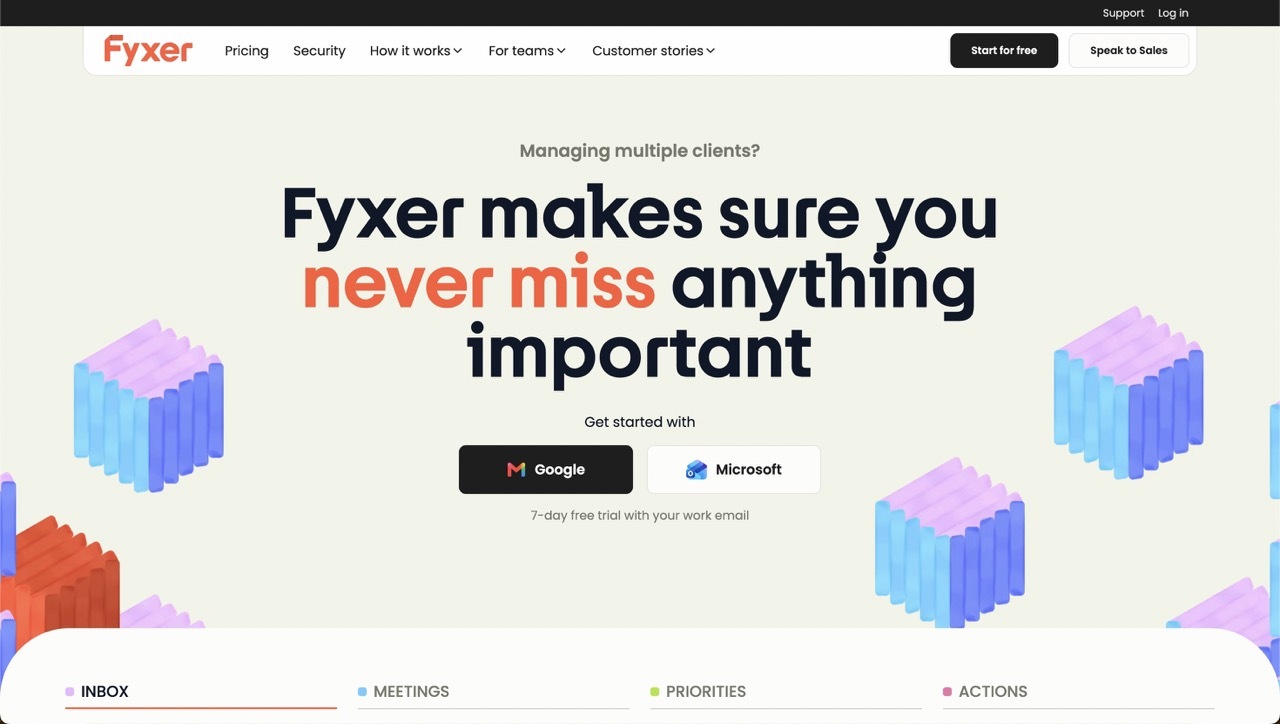 Fyxer connects to Outlook through Microsoft's own verification process and works alongside the inbox you already have open. It sorts incoming mail by urgency and type, drafts replies based on patterns learned from your past emails, and can join meetings to produce notes and action items afterwards.
Its strength is breadth: rather than a single writing feature, it covers organisation, drafting and meeting follow-up in one connected tool, which suits people whose real problem is email volume rather than any single message.
That breadth is also its trade-off. Because it drafts from your historical sent mail, it can just as easily repeat habits that weren't serving you well as it can capture the good ones, and it has no free tier, only a short trial (as of September 2026), so you're committing to a paid plan to properly test it.
|
Best for |
Standout strength |
Main limitation |
|
Inbox triage plus drafting in your own voice |
Learns your writing style from sent mail |
Can repeat unhelpful habits; no ongoing free tier |
Learn more about Fyxer for Outlook
5. Mailbutler
Best for teams that want tracking, tasks and AI writing in one add-in
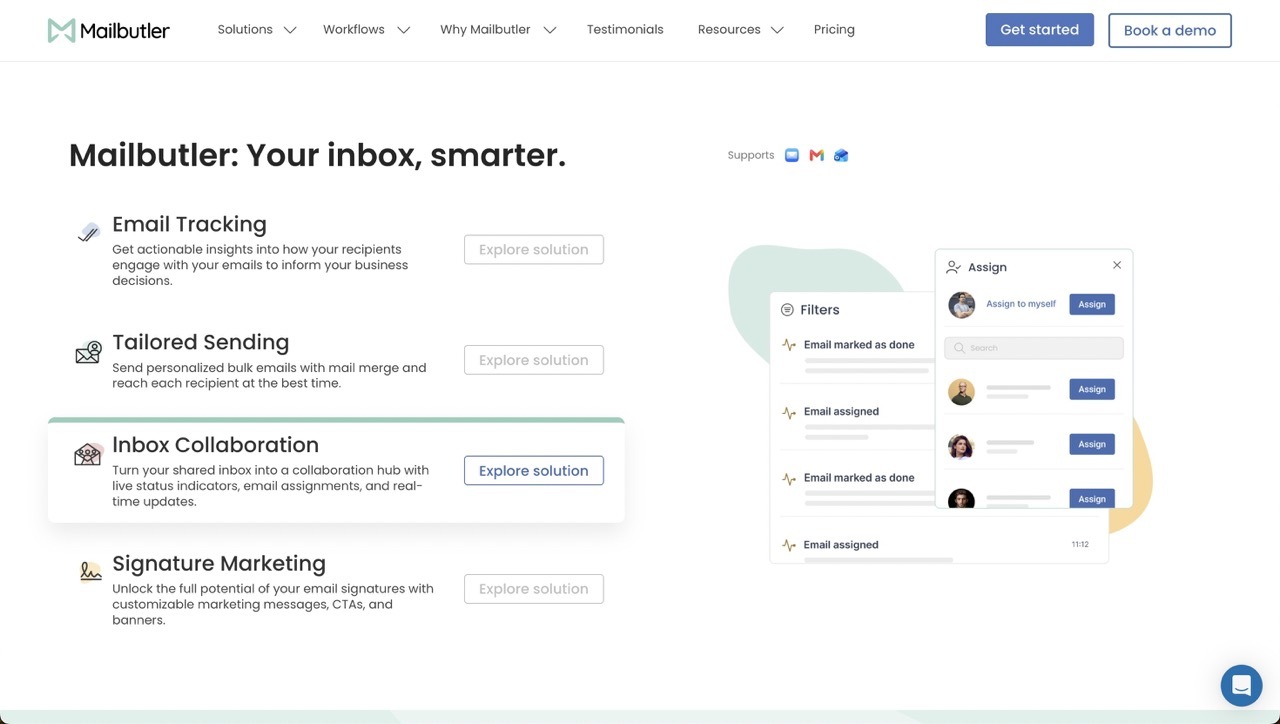 Mailbutler is an Outlook add-in (also available for Gmail and Apple Mail) that bundles email tracking, task extraction, templates and scheduling with an AI Smart Assistant for composing, replying, summarising and improving drafts.
Its advantage is consolidation. Instead of running a separate tracking tool, a separate task manager and a separate AI writer, one add-in covers all three, which saves time for smaller teams who'd otherwise be paying for and learning several tools.
The trade-off is that its AI writing is one feature among many rather than the product's main focus, and Mailbutler notes that it only sends the email body to its AI provider when the Smart Assistant is actively used, which is worth reading in full if you're handling sensitive content. It's also worth checking whether your Outlook client still supports the add-in, since Microsoft has been phasing out legacy COM add-in support in newer Outlook builds.
|
Best for |
Standout strength |
Main limitation |
|
Tracking, tasks and AI writing in one add-in |
Consolidates several tools into one |
AI writing is secondary; add-in support varies by Outlook build |
Learn more about Mailbutler for Outlook
6. MailMaestro
Best for fast, thread-aware replies
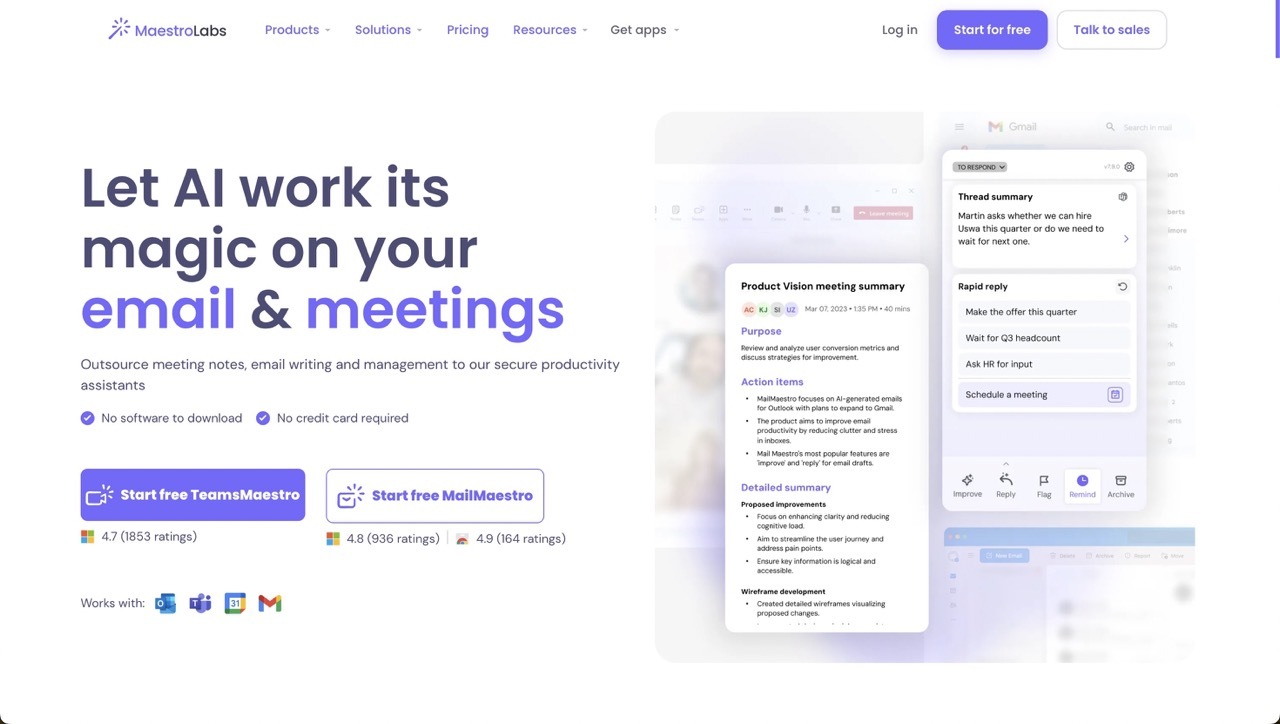 MailMaestro is an AI assistant built for Outlook and Gmail that drafts new emails and replies using the surrounding thread as context, rather than starting from a blank prompt.
Reading the whole thread before drafting a reply gives it more to work with than a tool that only sees the message you're currently writing, which matters when a reply depends on several earlier messages in the same conversation.
As with most full-draft generators, the more of the message it writes, the more you need to check whether the result actually reflects what you'd say and how you'd normally say it, particularly for anything with any nuance or history behind it.
|
Best for |
Standout strength |
Main limitation |
|
Fast, thread-aware replies |
Reads the full thread for context |
Needs careful editing to preserve your voice |
7. Crystal
Best for tailoring outreach to a contact's personality type
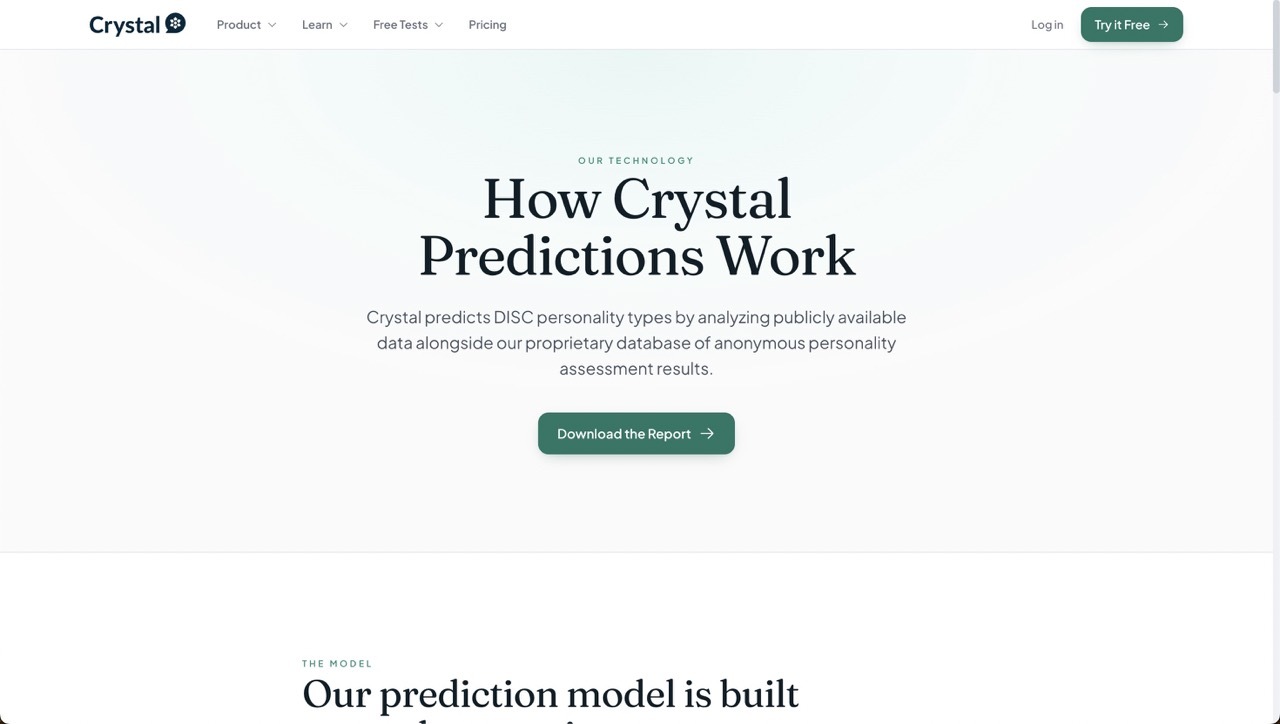 Crystal is a personality insights tool that integrates with Outlook, Gmail, LinkedIn and several CRMs. It builds a DISC-based personality profile of a contact from public information, then suggests how to adjust tone, greetings and calls to action to suit that profile.
It's one of the few tools here that starts from a theory of the recipient rather than the sender's draft, which makes it a different approach for outreach and sales-style writing where you're contacting someone you don't yet know well.
Its limitation is scope and reliability. Profiles are built from public data and predictions, which can be thin or wrong for people without much of a public footprint, and Crystal is designed around sales and relationship-building outreach rather than everyday internal or interpersonal email.
|
Best for |
Standout strength |
Main limitation |
|
Tailoring outreach to a contact's personality |
Starts from the recipient's profile |
Public-data profiles can be thin; built for sales outreach |
See how Crystal's predictions work
8. Wordtune
Best for rephrasing a sentence you're stuck on
 Wordtune is a browser extension that offers rewrite suggestions, tone shifts and alternative phrasing across web applications, including Outlook on the web.
It's useful when you know roughly what you want to say but can't find the right way to say it, since it offers several alternative phrasings rather than forcing a single rewrite on you.
It works at the sentence level rather than the whole message, and its browser extension is confirmed for Outlook on the web specifically; support inside the full Outlook desktop client is limited to a separate Word add-in, so people who mainly work in the desktop app may not get the same experience as those working in a browser.
|
Best for |
Standout strength |
Main limitation |
|
Rephrasing a stuck sentence |
Multiple rewrite options |
Only rewrites at sentence level; limited on desktop Outlook |
How the Tools Compare
|
Tool |
Best for |
Standout strength |
Main limitation |
|
Harmony |
Customising an existing Outlook draft to a specific recipient |
Keeps the sender's own voice while changing how the message lands |
Doesn't generate full emails from a prompt; still in early paid pilots |
|
Microsoft Copilot |
AI built directly into Outlook's compose window |
No separate sign-up; works across desktop, web and mobile |
Requires a Copilot licence; doesn't account for the recipient |
|
Grammarly |
Grammar, clarity and tone checking |
Tone detection before you send |
Evaluates the text, not the specific reader |
|
Fyxer AI |
Inbox triage plus drafting in your own voice |
Learns your writing style from sent mail |
Can repeat unhelpful habits; no ongoing free tier |
|
Mailbutler |
Tracking, tasks and AI writing in one add-in |
Consolidates several tools into one |
AI writing is secondary; add-in support varies by Outlook build |
|
MailMaestro |
Fast, thread-aware replies |
Reads the full thread for context |
Needs careful editing to preserve your voice |
|
Crystal |
Tailoring outreach to a contact's personality |
Starts from the recipient's profile |
Public-data profiles can be thin; built for sales outreach |
|
Wordtune |
Rephrasing a stuck sentence |
Multiple rewrite options |
Only rewrites at sentence level; limited on desktop |
How to Choose
If your problem is a blank page and you already pay for Microsoft 365 Copilot, start there: it's already in the compose window and needs nothing new installed. If your problem is catching mistakes and awkward tone as you type, Grammarly is the safest broad default. If email volume itself is the issue, Fyxer or Mailbutler will do more of the organising and drafting work for you, and MailMaestro is worth a look if most of your replies depend on a longer thread.
If you're doing outreach to someone you don't know well, Crystal's personality profiles are a different angle worth testing.
If your problem isn't any of those, if the email is basically written and your actual question is how a particular person will read it, that's a narrower job, and it's the one Harmony is built around. You can try Harmony inside Outlook to see how an existing message might land differently with a different recipient.
Where AI Shouldn't Write the Email
None of these tools should be doing the full drafting job for legal correspondence, medical information, formal HR processes, disciplinary matters, redundancy or termination notices, financial instructions, confidential information, or emotionally sensitive personal messages. This matters especially in Outlook, where many accounts sit inside an organisation's Microsoft 365 tenant with its own data-handling and retention policies that continue to apply regardless of which AI tool you're using.
Where exact factual or contractual voice matters, use AI to tighten what you've already decided to say, not to decide it for you. Check the facts, keep responsibility for the message, and read the final version before you send it.
FAQs: Best AI Writing Tools for Outlook
Does Outlook have a built-in AI writing tool?
Yes. Microsoft Copilot is integrated into Outlook's compose window for eligible Microsoft 365 Copilot licence holders, across New Outlook, Outlook on the web and, more recently, Outlook Classic and the mobile apps.
Will an AI add-in work the same way in Outlook Classic and New Outlook?
Not always. Microsoft has been phasing out legacy COM add-in support in newer Outlook builds, so it's worth checking a tool's current compatibility with your specific Outlook version before relying on it. Harmony works across Classic Outlook, New Outlook, Outlook on the web and the mobile apps, so this isn't a concern with it specifically.
Can AI customise an email to the specific person I'm sending it to?
To varying degrees. Harmony is built specifically around this, taking a draft you've already written and adjusting how it's likely to land for a particular recipient while keeping your own voice and intent central. Crystal takes a related but different approach, building a personality profile of the recipient from public data to guide tone and phrasing, though it's aimed more at sales outreach than general workplace email. Most other Outlook AI tools evaluate the message on the screen without factoring in who's on the other end.
Is there a free AI writing tool for Outlook?
Grammarly's free plan covers basic grammar, spelling and tone suggestions in Outlook at no cost (as of September 2026). Several other tools here offer short free trials rather than an ongoing free tier, so check current terms before assuming a tool is free long-term. Also, don't assume a free plan handles your data the same way a paid one does. Free tiers sometimes use your content to train models or store it for longer, so check each vendor's data-handling terms before connecting a free tool to a mailbox with anything sensitive in it.
Are AI writing tools safe to use with confidential Outlook content?
It depends on the tool and what you're sending. Check each vendor's current data-handling documentation, and if your Outlook account sits inside a managed organisational tenant, check with IT before connecting any AI add-in to a mailbox that handles regulated or confidential information.
What's the difference between an AI email writer and a communication intelligence tool?
An email writer generates a message from a prompt or a thread. A communication intelligence tool like Harmony works as an intent layer instead: it starts from something you've already written and adjusts how it's likely to land for a specific reader, while keeping your original meaning intact.
Choosing the Right Tool for You
The best AI writing tool for Outlook isn't necessarily the one that drafts the most or writes the fastest. It's the one that solves the actual problem you have, whether that's a blank page, a messy inbox, awkward phrasing, or a message you've written that you're not certain will land the way you mean it.
If that last one sounds like your situation, you can try Harmony inside Outlook to see how it handles a message you've already drafted.